How a desktop scanner speeds up your front desk
 By David Freeland4 min read ·
Too many steps for one scan
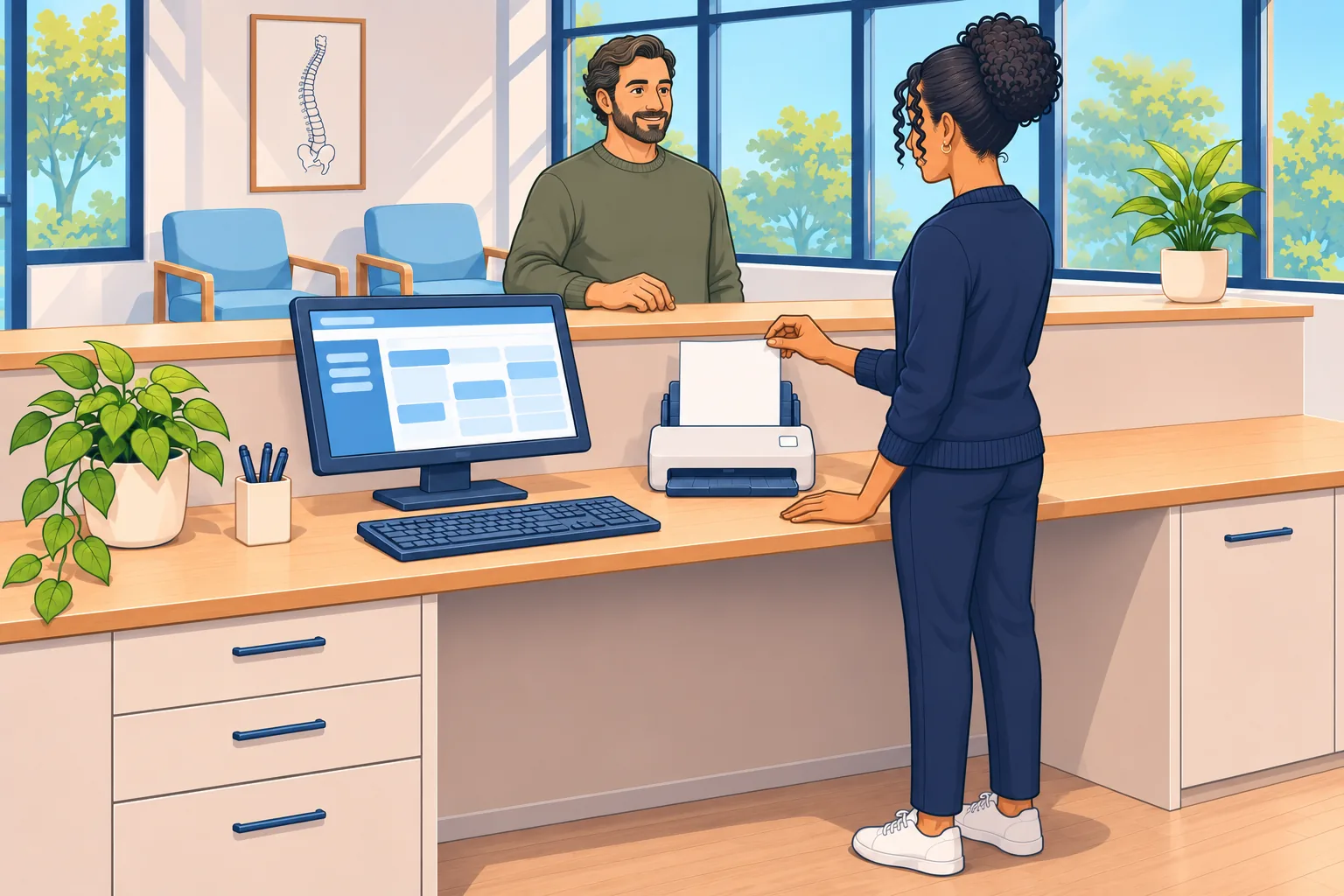
A first-time patient arrives late in the afternoon. She hands over her intake forms and her insurance card. Your front desk team member steps over to the office printer to scan them.
On the printer’s screen, she picks scan, then where the file should go, then two-sided. Back at her desk, she finds the file. Its name is a string of numbers. She renames it, deletes the blank backs of the one-sided pages, saves it in the right place, and attaches it to the patient’s chart. By then, two more patients are waiting at the counter.
Every step worked. It still took a few minutes and a lot of clicks. And it happens with every form and every card, all day.
One pass instead of many steps
The office printer does many jobs for the whole clinic. It prints, copies, and scans. Scanning is one job among many, so each scan takes a handful of steps at the printer and more at the computer.
A desktop scanner does one job. It sits next to the check-in computer. You set the pages in its feeder and press one button. It scans the front and back of each page at once and can drop the blank pages. Then it names the file, and saves it where you told it to, all in one pass. Some also take plastic cards, like an insurance card or a driver’s license.
Think of the preset buttons on a car radio. You find a station once and save it. After that, one press takes you there. A desktop scanner works the same way. You set up each kind of scan once, and one press handles the rest.
What to look for, and our favorite
Before you choose a scanner, look for five things:
- Both sides at once, minus the blanks. Scanning both sides in one pass is called duplex scanning. Look for blank-page removal too, so scans don’t add blank pages.
- A sheet feeder. It holds a stack, so you don’t have to load one page at a time.
- Card scanning. For insurance cards and driver’s licenses.
- One-touch settings. Set up each kind of scan once, including how the file is named and where it’s saved. Then one press does it all.
- A fit with your EHR. Some EHR software scans straight into the patient’s chart, but only with the scanners it supports. Check that list before you buy.
At Bakerford®, our favorite for most front desks is the ScanSnap iX1300 from Ricoh. It’s compact. It scans both sides of a page at up to 30 pages a minute, and its feeder holds 20 sheets. It can also scan plastic cards through a slot in front.
For a front desk that scans a lot, we like the ScanSnap iX2500. It scans up to 45 pages a minute, holds 100 sheets, and has a touch screen. Both run on Ricoh’s ScanSnap Home software. There, each kind of scan gets a profile. A profile saves the scan settings, how the file is named, and where it goes, and it can turn on blank-page removal. Pick the profile, press the Scan button, and the scanner does the rest.
There’s one thing to check first. Ricoh says ScanSnap scanners don’t support TWAIN, a standard way for scanners and software to talk. Here’s what that means for a ChiroTouch clinic. ChiroTouch’s cloud versions, Core and Advanced, need a scanner that supports TWAIN. ChiroTouch says ScanSnap won’t work with them. Server-based versions of ChiroTouch go the other way. They work with ScanSnap scanners. One EHR company, two different answers. That’s why the first call goes to your IT company.
Give your front desk its own scanner
- Count the steps: Follow one scan from start to finish. Count every step: the settings at the printer, any jam, and the renaming, saving and filing at the computer. That’s the time a scanner at the desk can give back.
- Ask your IT company first: Ask whether your EHR scans straight into the chart, and which scanners work with it and with the other programs your team uses. Then let your IT company set the scanner up, so every scan lands in the right place.
- Set up one button for each job: Make one setting for intake forms and one for insurance cards. Point each one at the folder your team already uses. If you turn on blank-page removal, check the first few scans. Ricoh notes that a page with only a few marks on it can be taken for blank.
Let the office printer keep the big jobs. A scanner at the desk lets your team stay with the patient in front of them.
Last reviewed November 14, 2026.
References & statutory citations
- Ricoh: ScanSnap iX1300 (product page, with a comparison to the iX2500; undated; viewed November 14, 2026). (opens in a new tab)
- PFU (EMEA) Limited, a Ricoh company: Scanner Support Downloads: ScanSnap Home (undated; viewed November 14, 2026). (opens in a new tab)
- Ricoh (PFU Limited): What is a Profile? (ScanSnap Help, © 2025–2026). (opens in a new tab)
- Ricoh (PFU Limited): How do I change file name settings? (ScanSnap FAQ, July 31, 2025). (opens in a new tab)
- Ricoh (PFU Limited): Scanned Pages Are Sometimes Unexpectedly Detected as Blank and Not Saved (ScanSnap FAQ, updated September 11, 2025). (opens in a new tab)
- Ricoh (PFU Limited): Does the ScanSnap Series support TWAIN or ISIS? (ScanSnap FAQ, November 22, 2024). (opens in a new tab)
- ChiroTouch: Determining Scanner Compatibility (ChiroTouch Community, cloud help; undated; viewed November 14, 2026). (opens in a new tab)
- ChiroTouch: ChiroTouch System Requirements (effective September 30, 2025). (opens in a new tab)